Automatically detect faces
MediaPipe long-range detection on sampled frames. Tiny boxes, one-off false hits, and dark silhouettes are dropped so empty shots stay out of the cut.
 FaceTrim
Extract face segments from video automatically. FaceTrim keeps shots where a face is visible, drops empty frames and false hits, then stitches a new MP4. Drop files in and click Start.
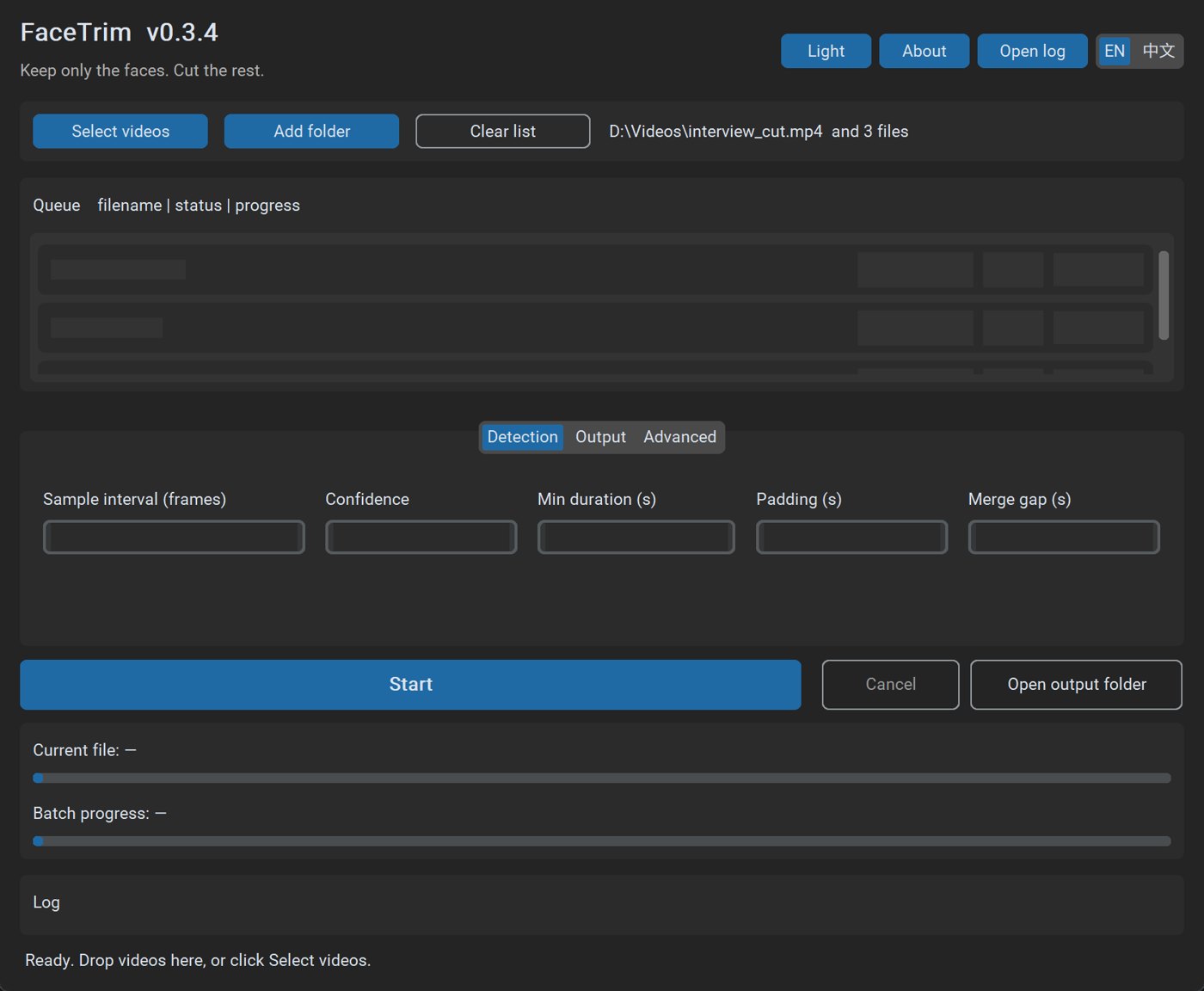
FaceTrim is a Windows desktop app for automatic face-only video trim. Point it at a long recording and it finds the shots where a face is actually visible, then cuts empty frames, backs of heads, and sign-like false hits. The result is a shorter MP4 you can archive or edit — keep only the faces, cut the rest.
Use it to extract face segments from interviews, livestreams, and talk footage; to batch-process a folder of clips; or to slim a drive full of raw video. Detection uses MediaPipe’s long-range face model on sampled frames, then merges nearby hits and drops segments that are too short or too dark. That is how FaceTrim removes empty shots without glueing dead air back in.
Export defaults to a fast re-encode at the source bitrate so playback stays smooth. NVIDIA, AMD, or Intel GPU encoding is used when available. Everything runs locally — FaceTrim does not upload your videos. Download the portable zip, unzip the whole folder, and double-click FaceTrim.exe. No Python or FFmpeg install is required.
MediaPipe long-range detection on sampled frames. Tiny boxes, one-off false hits, and dark silhouettes are dropped so empty shots stay out of the cut.
Pick files or a folder, or drop them on the window. Watch per-file and batch progress, then open the output folder when it is done.
Default fast re-encode at source bitrate. Uses NVIDIA, AMD, or Intel GPU encoding when available so the stitched MP4 plays cleanly.
Sort hours of talk, celebrity, or live footage down to the face-visible parts.
Build a face-only reel without scrubbing every empty shot by hand.
Keep the people, drop the rest, and shrink archives of raw video.
Videos never leave your computer. No account and no upload.
Unzip and run. Python and FFmpeg are already bundled.
Queue a folder, skip existing outputs, and keep your last settings.
Download the zip and unzip the whole FaceTrim folder — not just the exe.
Double-click FaceTrim.exe. Switch the UI with EN / 中文 in the corner.
Drop videos and click Start. Output is *_faces.mp4.
FaceTrim is a face-only video trimmer. It scans a video, keeps segments where a face is actually visible, cuts empty shots and false hits, and exports a new MP4.
mp4, mov, avi, mkv, flv, wmv, and m4v. Output is always MP4.
No. The portable Windows build includes FFmpeg. Unzip the whole FaceTrim folder and double-click FaceTrim.exe.
Yes. Select multiple files or a folder, or drag them onto the window. FaceTrim shows per-file and batch progress.
Detection samples frames instead of checking every frame. Export defaults to a fast re-encode and uses NVIDIA, AMD, or Intel GPU encoding when available.
No. Detection and export run entirely on your computer. Videos stay local.